Manufacturing Performance Data Reporting Tools & Software
Sciemetric makes reporting on manufacturing process and quality simple and accessible with a wide selection of standard report templates and custom options available to meet your needs.
Whether it’s for a single part, batch of parts, a production shift or a request you received, creating a report on part quality shouldn’t be a hassle. Forget the spreadsheets! The QualityWorX software suite, including Sciemetric Studio and the QualityWorX Reporting Service, makes it easy to access data and create shareable reports to keep your whole team up-to-date on production line performance. QualityWorX offers a variety of popular standard report templates which are fully editable, making it easy to get started and customize reports for your needs.
Standard report templates:
- Part History Reports
- Trend Reports
- Advanced Trend Reports
- Control Charts
- Failure Reports (Pareto)
- FTY Reports (and Pareto)
- And More!
Sciemetric Studio: Core Manufacturing Performance Reporting Capabilities

Sciemetric Studio offers three primary reports designed to support important day-to-day manufacturing analytics needs: Part History Report, Trend Report, Advanced Trend Report—along with flexible visualization tools for quick, effective comparison and insight.
Together, these reports help teams in quality, engineering, maintenance, and production quickly understand what happened, why it happened, and what to do next. Explore how each report turns production data into clear, actionable decisions, below.
Part History Reports
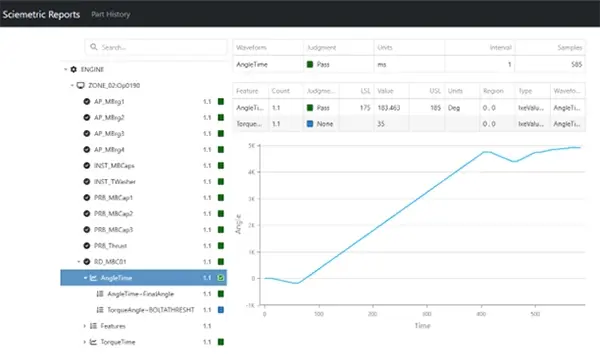
A Part History Report provides a complete, chronological record of everything that happened to a single part as it moved through the manufacturing process—including machines, tasks, measurements, waveforms, images, extracted features, and final results.
This report is commonly used by quality engineers, warranty and service teams, line supervisors, and NPI teams to investigate issues and validate process performance.

Use a Part History Report when you need to answer questions like:
Why did this part fail?
Drill into the exact task or feature that caused the failure; view waveform overlays, feature values, images, etc.
What happened to this individual part on the line?
Useful for customer returns, warranty investigations, audits.
Did this part go out of sequence?
Helpful for manufacturers using skip logic or validating that assembly order was followed.
Show me the signature behind a feature value.
Great for engineering analysis tied to waveform-based measurements.
Trend Reports
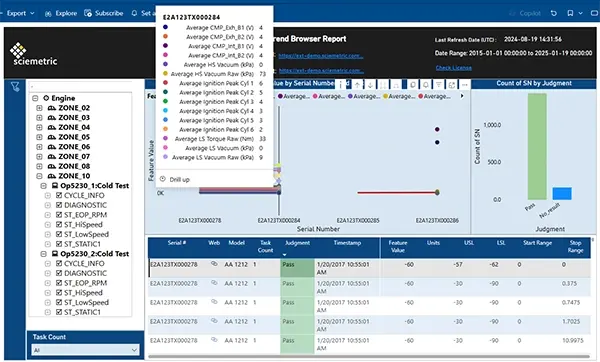
A Trend Report enables you to analyze data across many parts at once, revealing patterns, process shifts, SPC behavior, yield performance, and comparisons across features, stations, models, or time periods.
This report is commonly used by process engineers, quality engineers, plant leadership, and continuous improvement teams to monitor performance, identify emerging issues, and drive data-informed process improvements.

Use a Trend Report when you need to answer:
Is my process drifting?
View trend lines, 3-sigma bands, control limits, and Nelson Rules violations.
What’s my yield or failure rate over time?
Judgments Pareto, pass/fail percentages, trend-by-time/sample.
Are we producing different results on different machines or shifts?
Grouping tools: by machine, by line, by model, by batch.
Filter the data to only show defective or out-of-control parts.
Supports filtering by model, serial, batch, counts, defects, judgment, properties, tags, and more.
Compare patterns across dozens or hundreds of parts.
Waveform overlays, histograms, feature distributions.
Advanced Trend Reports
An Advanced Trend Report gives engineering teams the flexibility to manipulate waveforms, create up to 10 custom features, and analyze them together in a single, unified view—stacked or overlaid for direct comparison. With tools such as X-vs-Y plotting, regression analysis, multiple axes, 3D waveform visualization, and flexible comparison options, this report supports deeper signal-level analysis and complex process investigations.
It is commonly used by manufacturing data scientists, senior process engineers, advanced manufacturing teams, R&D, and NPI groups to develop features, validate assumptions, and uncover relationships that standard trend views may not reveal.
.webp)
Use an Advanced Trend Report when you need to answer:
How do multiple features relate to each other?
Compare features on separate Y-axes or in vs-X (correlation) mode.
Do multiple waveforms behave consistently across units?
Overlay or 3D waterfall plots to visualize variation.
Which feature is the best predictor of a defect?
Scatter plots, regression equations, distribution comparisons.
How do processed signals behave before vs after filtering or transformation?
Ideal when working with data analysis processors + features together.
Supporting Visualizations for Data Analysis & Comparison
Powerful data visualization tools are integrated across all three core report types, enhancing every analysis and enabling faster insight, clearer comparisons, and more confident decision-making.
Interactive charts, waveform views, overlays, feature comparisons, and flexible filtering allow users to quickly identify patterns, isolate anomalies, and validate performance across parts, stations, models, or time periods—helping teams move from raw data to actionable insight with greater speed and accuracy.
-
Waveform Viewer
Used for signature analysis (force, torque, pressure curves, vibration, etc.)
Overlays, zoom/pan, feature regions, 3D mode.
-
Histogram / Distribution View
Used for understanding population distribution and variation.
-
Control Charts
(I-MR, Xbar-R, Xbar-σ, grouped charts)
Used for SPC monitoring and stability analysis. -
Judgment Pareto
Quick identification of most common pass/fail outcomes.
Sciemetric’s QualityWorX Reporting Service
makes reporting easy
The QualityWorX Reporting Service offers interactive, customizable reports and visual dashboards that make it easy to monitor production performance, identify issues, and drive continuous improvement.
-
No more waiting for reports: The reporting service pre-calculates standard report content as data comes into QWX, so you don’t have to wait for reports when you need them.
-
Use the tools you want: The QWX reporting interface lets you use the QWX data in any business intelligence tool that supports a REST API/HTTP interface so you can leverage the tools you already have if you are not a Power BI user.
-
Leverage other data: You can build new reports that leverage QWX data and external data from other sources to do analytics that exceed the scope of the data stored in QWX.
-
Live data connections: The interface supports live data connectivity—this is not just static exports. This makes it possible to enable real-time reporting.
-
Customize, share and get notified: With Power BI functionality, you can customize your reports, share them with colleagues, set up alerts on specific calculations and subscribe to reports to maximize the value of the data you capture from your plant floor systems.
-
Access your data from anywhere: Access your reports when you need them from any device on any platform that supports Power BI.
Standard reporting with the flexibility of simple customizations
The QualityWorX Reporting Service is built with in-the-box support for Microsoft Power BI, with PBI reports that provide a quick and simple way to get you started using pre-configured templates.
These reports can also be used with other BI products—such as Tableau or Excel—via SQL-based access to a flattened and aggregated version of your data, giving your team the freedom to use the tools that best fit your reporting needs.